If you're affected by the ongoing Beacon Security Incident, you must follow the steps in this guide in order to update your payment providers and apps.
Connections to your payment providers and apps will remain active wherever possible across your Beacon account. Please follow the step-by-step instructions below as soon as you can.
Connections to your payment providers and apps will remain active wherever possible across your Beacon account. Please follow the step-by-step instructions below as soon as you can.
Action required:
Gift Aid (HMRC)
If you’re using Beacon to submit your GiftAid claims, you should reset your charity’s Government Gateway ID password.
1. Go to the HMRC Online Services Login.
2. Click Sign In → select Government Gateway.
3. Click "I have forgotten my password" and follow the prompts to reset your Gateway ID password.
4. Once reset, navigate in Beacon to Settings > Gift Aid and reconnect.
1. Go to the HMRC Online Services Login.
2. Click Sign In → select Government Gateway.
3. Click "I have forgotten my password" and follow the prompts to reset your Gateway ID password.
4. Once reset, navigate in Beacon to Settings > Gift Aid and reconnect.
Other integrations:
Complete the steps listed for each service before attempting to disconnect and reconnect.
Mailchimp
1. Go to Integrations > Manage (Direct Link)
2. Locate Beacon, click the drop-down menu, and select Disconnect, as shown below.
2. Locate Beacon, click the drop-down menu, and select Disconnect, as shown below.

3. Confirm the disconnection.
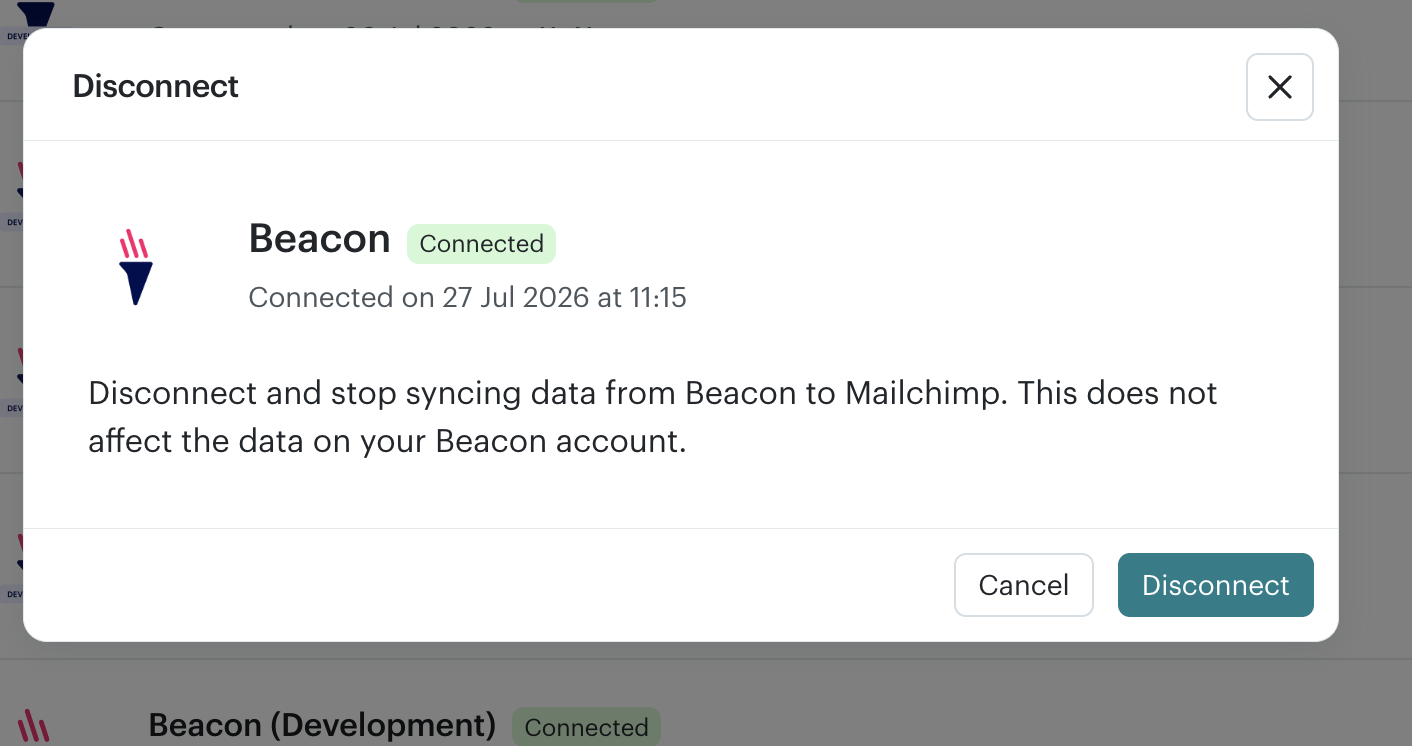
4. Reconnect the integration using our Mailchimp Setup Guide.
JustGiving
⚠️ Update: (20th August at 13:58) JustGiving have re-enabled our integration. Users will need to reset their Password and set up a new Developer App. We do not expect any data loss after you finish these steps.
1. Create a new Developer App in JustGiving
a) Navigate to JustGiving's developer portal: developer.justgiving.com
b) If you do not have a “Live” App please create a new one, inputting the following details:
Name: Beacon CRM #2
Description: Used for Beacon
Client: Server
c) You need to ensure the App has full permissions to access both Live Servers and Data API. To check:
- Click on the Pencil icon on the right-hand side of your app:
1. Create a new Developer App in JustGiving
a) Navigate to JustGiving's developer portal: developer.justgiving.com
b) If you do not have a “Live” App please create a new one, inputting the following details:
Name: Beacon CRM #2
Description: Used for Beacon
Client: Server
c) You need to ensure the App has full permissions to access both Live Servers and Data API. To check:
- Click on the Pencil icon on the right-hand side of your app:

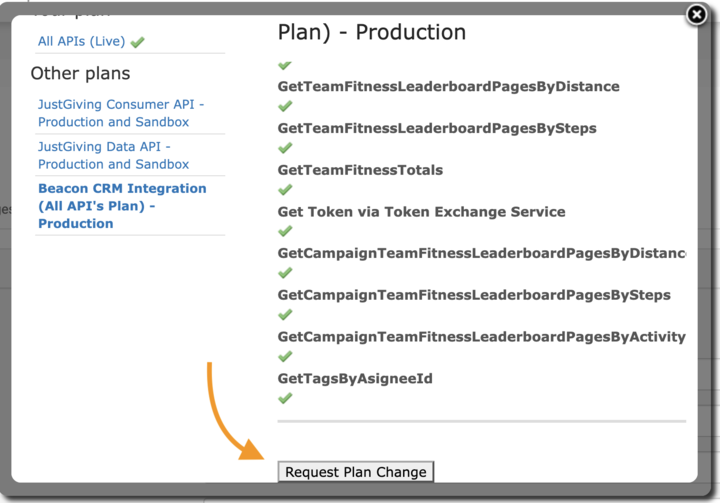
- Ensure it has full access to all features in “Your Plan” including Live Servers and Data API, if not please change it to the Beacon CRM plan instead:
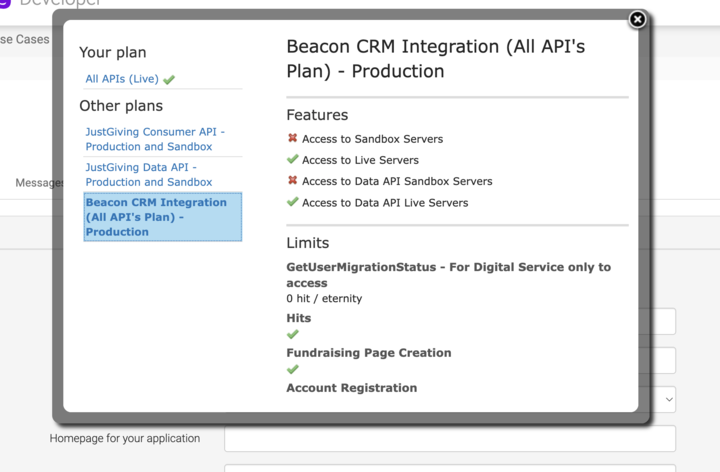
- You will need to scroll to the bottom and put in a request (You’ll need JustGiving to approve you before this change has finished).
2. Reset your password to JustGiving using this link: https://justgiving.com/sso/resetpassword
Important Notes:
- This is not a Blackbaud login, this has to be a pure JustGiving Password.
- Ensure your special characters are only full stops (.), do not use others such as question marks (?) or exclamations (!).
Important Notes:
- This is not a Blackbaud login, this has to be a pure JustGiving Password.
- Ensure your special characters are only full stops (.), do not use others such as question marks (?) or exclamations (!).

3. Once you've done the above, follow these steps to connect your JustGiving app to Beacon.
FundraiseUp
⚠️ Update: (3rd August at 18:15) FundraiseUp have automatically disabled all impacted API keys. As such please skip to step #5, and set up a new key using our Setup Guide.
1. Go to your Fundraise Up API Keys Settings.
2. Locate the API Key used for Beacon (if unsure, revoke all existing keys).
3. Click the three dots next to the key and select Remove.
1. Go to your Fundraise Up API Keys Settings.
2. Locate the API Key used for Beacon (if unsure, revoke all existing keys).
3. Click the three dots next to the key and select Remove.
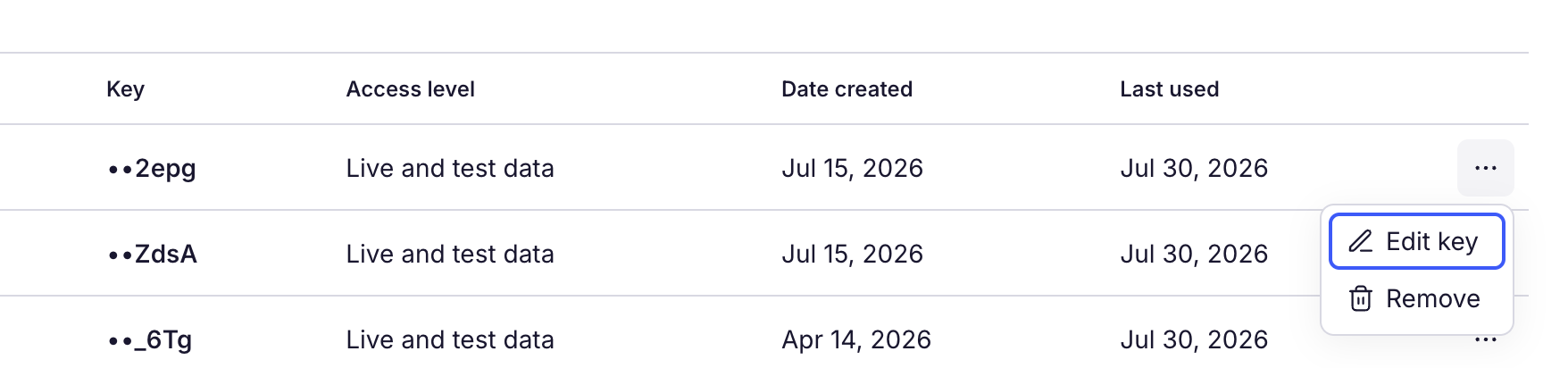
4. Confirm removal of the key.
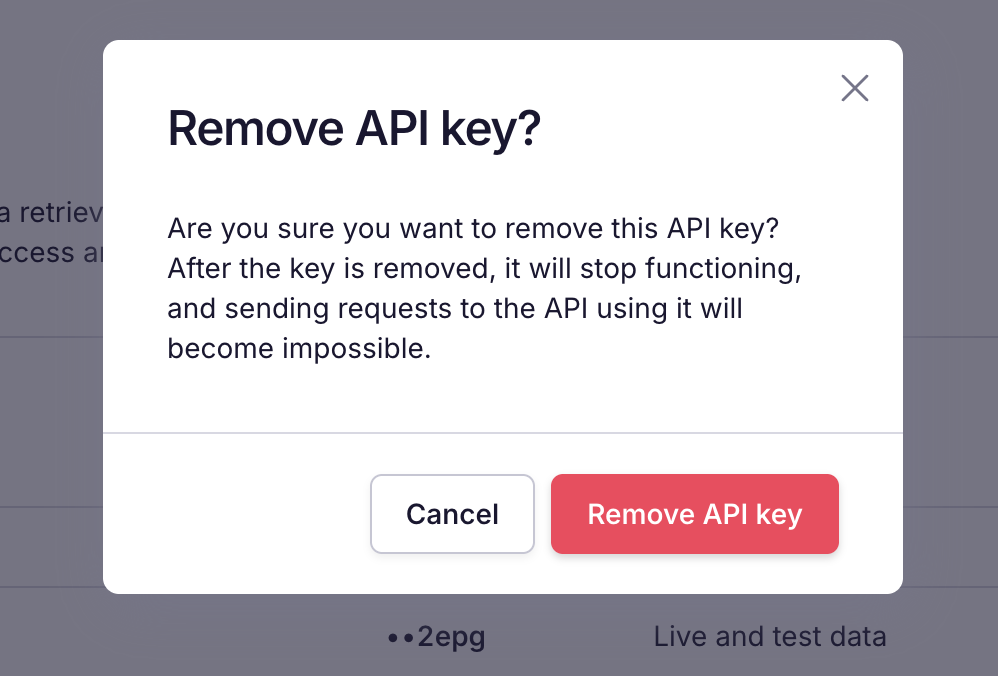
5. Generate a new API key and reconnect using our Fundraise Up Setup Guide.
DotDigital
⚠️ Warning: (3rd August at 18:40) DotDigital have disabled all API keys for you already. As such, you will see Health Check warnings in Beacon when you login. Please skip to step #5 below to create a new API user using our Setup Guide.
1. Go to your Dotdigital API User Settings.
2. Locate the API key used for Beacon and click the Edit (pencil) icon.
1. Go to your Dotdigital API User Settings.
2. Locate the API key used for Beacon and click the Edit (pencil) icon.
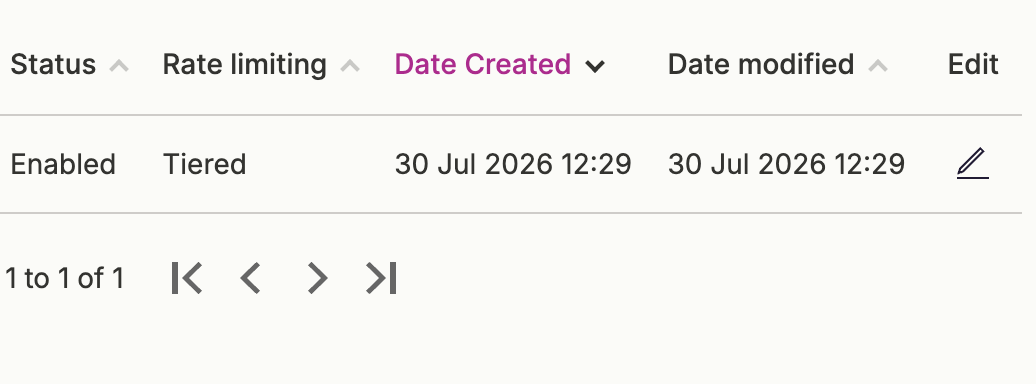
3. Disable the API key and click Save.
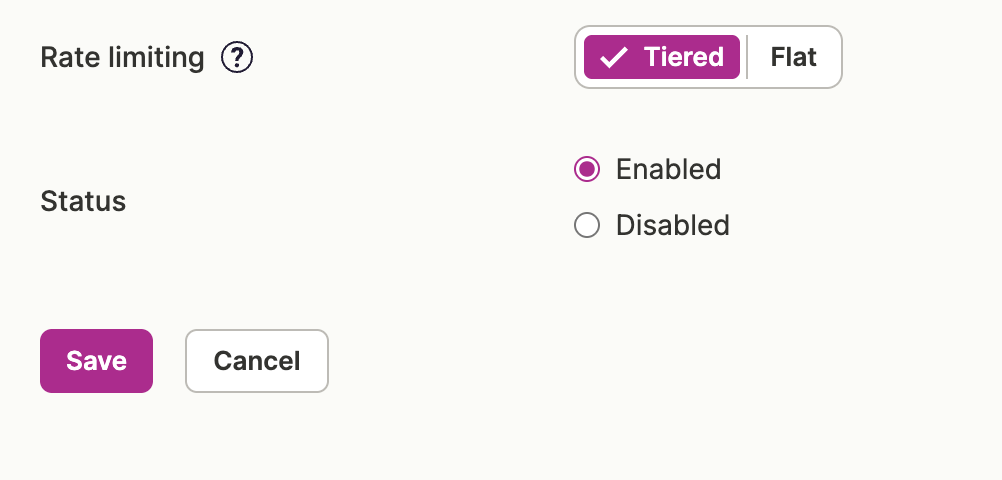
4. Delete the disabled API user (recommended).
5. Create a new API user and reconnect using our Dotdigital Setup Guide.
5. Create a new API user and reconnect using our Dotdigital Setup Guide.
SendGrid
1. Go to your SendGrid API Keys Settings.
2. Click the gear icon next to the key used for Beacon and select Delete API Key.
2. Click the gear icon next to the key used for Beacon and select Delete API Key.
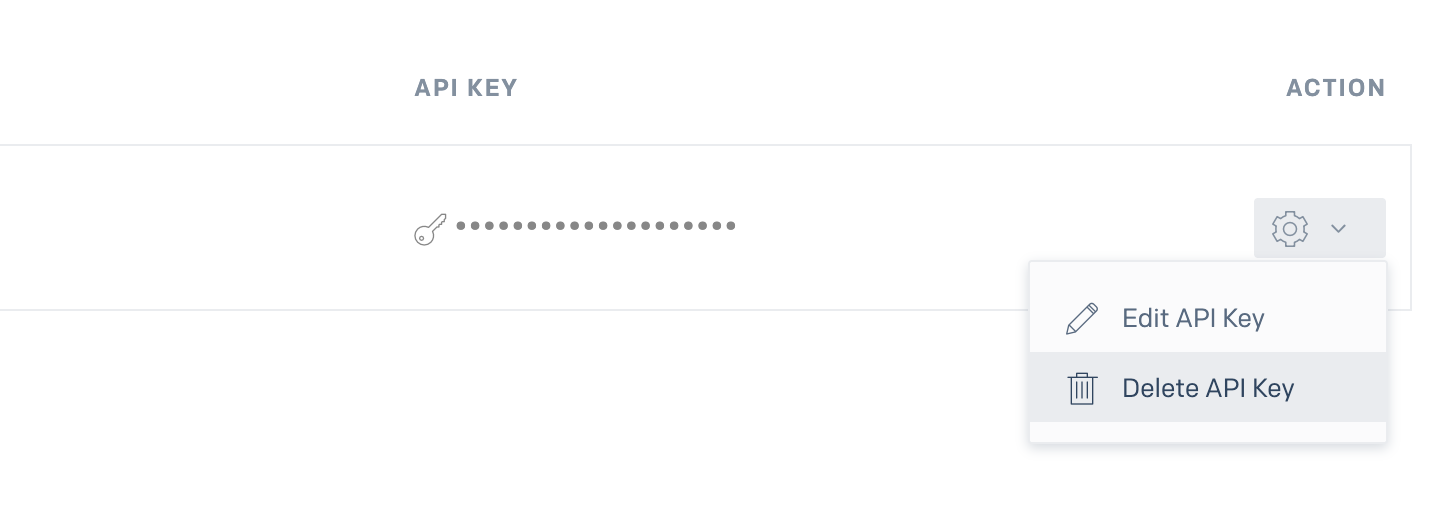
3. Reconnect your account using our SendGrid Setup Guide.
MuchLoved
⚠️ Update: (4th August at 11:00) MuchLoved have disabled all API keys for you already. As such, you will see Health Check warnings in Beacon when you login. Please skip to step #2 below to create a new API user using our Setup Guide.
1. We have emailed MuchLoved and asked them to revoke your API key, but we would recommend you email them as well to expedite the process:
Email: support@muchloved.com
Subject: API Key for Beacon Revoke
Message:
Hi Team,
Please revoke our current API Key and App ID associated with Beacon CRM and issue a new set. Beacon has advised us to perform this reset for security reasons. Please process this request as soon as possible.
Thank you,
[Your Name / Charity Name]
1. We have emailed MuchLoved and asked them to revoke your API key, but we would recommend you email them as well to expedite the process:
Email: support@muchloved.com
Subject: API Key for Beacon Revoke
Message:
Hi Team,
Please revoke our current API Key and App ID associated with Beacon CRM and issue a new set. Beacon has advised us to perform this reset for security reasons. Please process this request as soon as possible.
Thank you,
[Your Name / Charity Name]
2. You can then reconnect by following the MuchLoved Integration guide article.
Enthuse
⚠️ Update: (25th August at 14:29) Enthuse have automatically revoked your API key and have generated new keys.
1. Please fill out this form and they will send you your new keys.
2. Once you have these, please follow our Enthuse Integration guide article.
1. Please fill out this form and they will send you your new keys.
2. Once you have these, please follow our Enthuse Integration guide article.
GoCardless
Time Requirement: We will be turning off all keys that have not been disabled and changed at 11AM on Thursday August 27th. Please ensure you follow the steps below ASAP if you have not done so already:
⚠️ Warning: Disabling GoCardless temporarily pauses your ability to collect Direct Debits via Beacon forms and any webhooks (new Payments created by GoCardless). To minimise downtime, please revoke access manually below and reconnect quickly.
1. Go to GoCardless Connected Apps.
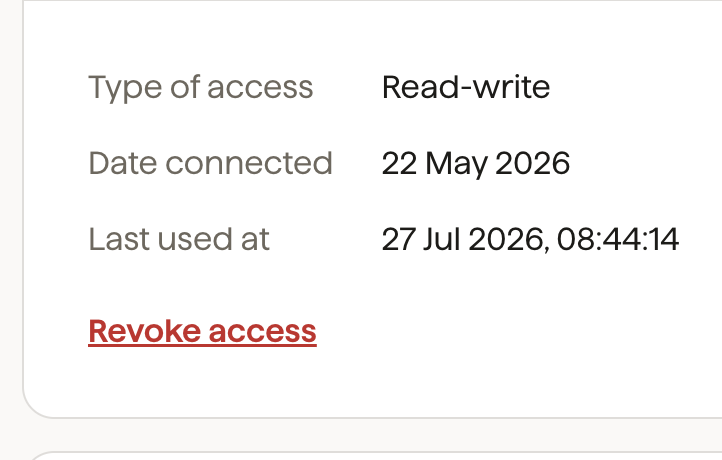
2. Find the Beacon app and click Revoke Access.
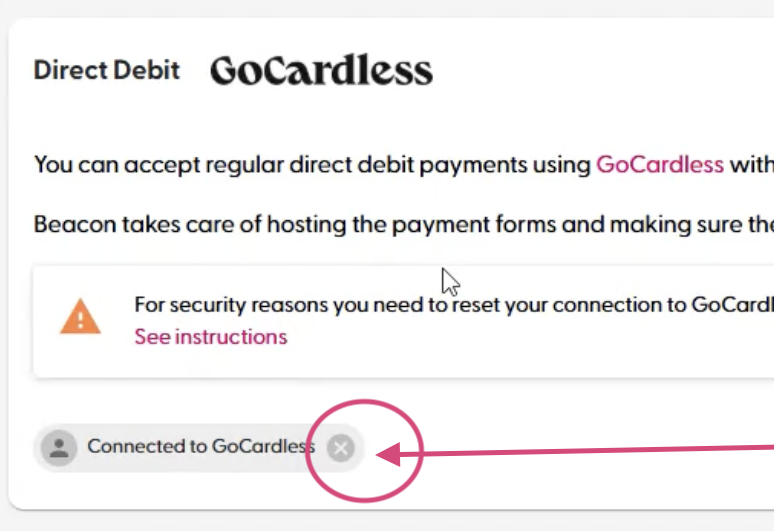
3. Disconnect GoCardless in Beacon (Settings > Payments):
4. Reconnect your account using our GoCardless Setup Guide.
Action Recommended:
API Keys
Beacon API keys are used for custom 3rd-party integrations, data downloads, and website forms.
Security Status: API keys are stored in our system using secure one-way encryption (Bcrypt) and were not directly exposed.
Recommendation: As a security best practice, generate new API keys in Settings > API Keys and revoke your old ones. View API Key Guide.
Security Status: API keys are stored in our system using secure one-way encryption (Bcrypt) and were not directly exposed.
Recommendation: As a security best practice, generate new API keys in Settings > API Keys and revoke your old ones. View API Key Guide.
Zapier
Zapier relies on your Beacon API Key. If you replace your Beacon API key as recommended above, remember to update the key inside Zapier to prevent connection interruptions. View Zapier Setup Guide.
No Action Required:
The following integrations do not use compromised credential types, or their credentials have already been rotated automatically on our backend:
- Xero
- Paypal POS (Zettle)
- Stripe
- PayPal
- Xero
- Paypal POS (Zettle)
- Stripe
- PayPal